Remove Watermarks, Logos, Text from Your Videos Like a Professional
Maybe you've already downloaded a video from which you'd like to remove an element that bothers you. It could be to redistribute it or simply to keep it clean without watermarks stored on your computer.
Or for example, it could also be your screen that you recorded to make a tutorial. But let's say there are persistent logos or that you want to remove. Or maybe also sensitive data that you want to remove from your video before publishing it.
🎬 VIDEO DEMONSTRATION

Sometimes it requires quite a bit of effort to be able to remove them when you're not a specialist in video editing software.
Our Video Watermark Remover is the ultimate solution for anyone who wants to remove watermarks from a video quickly, efficiently, without any technical knowledge. Whether you want to remove overlay text, a company or brand logo, timestamp-type indications, or any other visual indicator you want to eliminate, particularly for example personal data. Our software does it for you in just a few clicks.
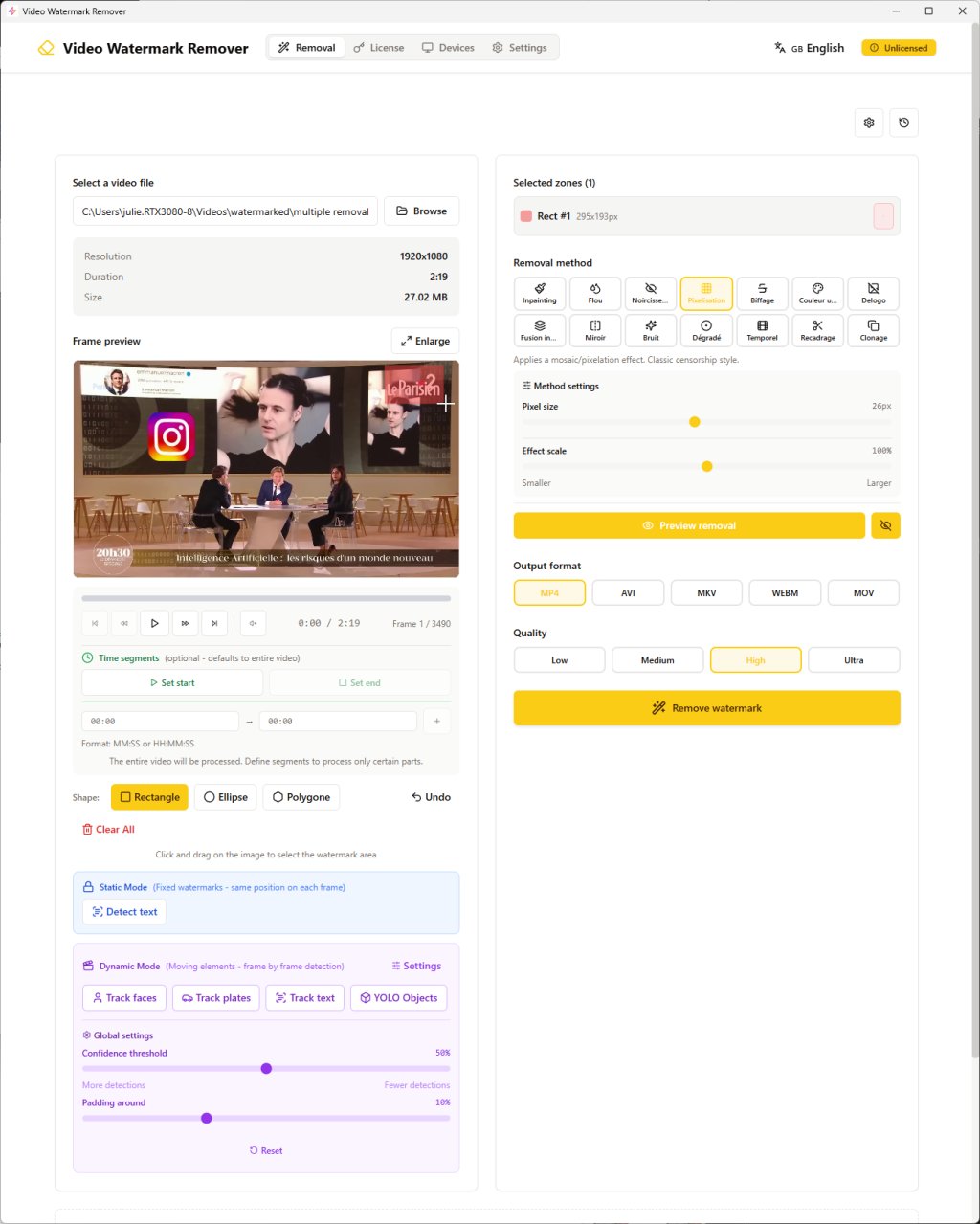
Unlike certain video editing software that are quite complicated, like Adobe Premiere, Final Cut, or other software that require training and following tutorials, etc. All that is quite tedious. Our tool is made for beginners, as well as for experts who want to go fast without breaking their heads.
You don't need to understand complex things related to masks, video encodings, video codecs, or complicated compression settings. You simply load your video, select the watermark area, choose your removal method, and let the software produce magic for you.
The result is clean and professional. Your video file is ready for your projects, your presentations, your personal collection, or for publication on social media.
The software supports all popular video formats, which includes MP4, AVI, MKV format, WebM, MOV, to ensure maximum compatibility between your devices and your workflow.
Download today our Video Watermark Remover, try it for free and transform your amateur videos into professional production quality in minutes and not hours.
Why Choose Video Watermark Remover?
When there are millions of videos shared online every day, watermarks can sometimes become annoying. Or sometimes, you simply have beyond watermarks, sensitive information that you don't want to share, sensitive information that you can find when you record your computer screen or something else.
Both for you and for the people who will watch your videos ultimately, these small visual distractions can degrade the content quality. That's where we intervene with our Video Watermark Remover software that stands out a bit from the competition of other software.
We tried to include a maximum of different removal methods. We have 14 in total, to try to face all situations or almost.
The 14 Removal Methods
1. Inpainting (Intelligent Fill)
How does it work actually? Quite simply, the software analyzes the pixels located around the area you want to remove and in quotes "guesses" what should be underneath. It reconstructs the image by drawing inspiration from the neighboring colors and textures of the area you selected.
In terms of parameters, you have the analysis radius. Basically, the larger it is, the farther it looks to reconstruct your image. You have Telea or Navier-Stokes, these two different algorithms. You can test them to see the results, the differences between the two attempts.
Ideal for: Watermarks on relatively uniform backgrounds or with fairly repetitive textures like what could be the sky, a uniform wall or not, grass, etc.
Result: Something that is very natural, as if the watermark had never existed.
2. Blur
You know blur well. It applies a blur effect to the area you selected to make it unreadable. Then you can adjust the intensity of this blur, the higher it is the more blurred it is, the more blurry it is.
Then you have different types of blur:
- Something that is soft and uniform, it's the default selection
- Median blur that better preserves edges
- Bilateral that keeps the sharp contours of your area well
Ideal for: Hiding anything that could be sensitive information like faces, license plates, while showing that there was also something previously in the area. It's widely used for privacy protection in all software that does this kind of thing. You see it quite frequently for example on Google Maps to mask license plates.
3. Pixelate (Pixelization)
Basically it greatly reduces the resolution of the area you selected and creates large squares of colors, a mosaic effect. The larger the pixel size, the bigger the squares.
Ideal for: Censoring content. People are used to blurring faces with this kind of effect. You have a pixelated effect that is recognizable by everyone and it's impossible to read what was underneath.
⚠️ Warning: Certain analysis methods can recreate the image even if you've applied this type of filter. I advise you to counter this by increasing the pixel size as large as possible so it doesn't degrade your video too much, but think that reverse engineering can be done with this kind of method.
4. Blackout
Simply fills the area with a solid color (black by default). You can adjust the opacity from 0 to 100%.
Ideal for: Complete and simple masking, when you don't want to see anything at all.
Result: A black rectangle (or the chosen color) completely hides the area.
5. Delogo (Specialized Logo Removal)
How does it work? It's simply an intelligent combination of inpainting to reconstruct while applying a blur on the edge of the removal area.
Ideal for: Logos that have sharp edges or watermarks that would be semi-transparent.
Result: Can sometimes be better than simple inpainting for logos because it better handles edge transitions.
6. Smart Blend (Intelligent Blending)
It analyzes the pixels on the contour of the area, calculates the average color and fills the area with this color while applying a progressive fade effect on the edges at the same time.
You can adjust certain parameters like the edge color sampling radius (Blend Radius), and you can also soften the edges. By default it's set to 10, higher the smoother the transition will be.
Ideal for: Watermarks on backgrounds that would be relatively uniform.
Result: The area is filled with a color that corresponds to your image context with faded edges.
7. Color Fill
It fills the area with a color you will have chosen uniformly and you can add a little opacity in the settings.
Ideal for: When you know the exact color of the background to have a particular graphic effect.
Result: A color rectangle or a shape (color circle). It's simple but effective on solid backgrounds, for example a presentation or something like that.
8. Gradient Fill (Adaptive Gradient)
It will create a color gradient by analyzing the colors on the edges on either side, all around your selection area. Then it will fill it with a transition that will be progressive.
You can add a gradient:
- From left to right
- From top to bottom
- Circularly from center to outside
You can choose the starting color and the ending color, but if you don't do it, it will be calculated automatically.
Ideal for: Backgrounds that would have a color gradient, for example a sunset, a sky, something like that.
Result: A fairly smooth result that integrates with the gradient background.
9. Mirror (Mirror Effect)
Will copy the area immediately to the left or above the area you want to remove, and it will flip it like a mirror to cover the removal area.
Ideal for: Patterns that are symmetrical or repetitive.
Result: The area is replaced by the reflection of the adjacent area, which can sometimes seem natural on certain types of backgrounds.
10. Noise Fill
Will analyze the texture and its colors around the area to generate random noise that will correspond to the sought characteristics. You can adjust the noise intensity, or add coloration, or have your noise in grayscale for old images.
Ideal for: Images that would be for example with grain like old videos, or if you want to have a particular effect.
Result: The area will be filled with a texture that will be noisy, that will blend into the context.
11. Strikethrough
Will draw crossed diagonal lines on the area, as if confidential documents were marked with a marker. You can adjust the color, thickness of these lines and spacing between them, as well as angles.
Ideal for: Voluntarily showing that you're censoring content. You can even leave, if you wish, a part partially visible under the lines.
12. Frame Interpolation (Temporal Interpolation)
Will analyze the previous and following images of the video to calculate an average of pixels and reconstruct the removal area. Basically, it will look at what's in the other images of your video at the same location.
Ideal for: Backgrounds that move a little or some static elements. If the background moves and the watermark is fixed, this method can reconstruct the hidden background.
⚠️ Warning: It's less effective if everything is in motion.
13. Crop (Cropping)
Rather than masking the watermark, this method will simply crop your video by excluding the part you want to remove.
⚠️ Warning: This will necessarily change the video dimensions during the cropping operation with reduced dimensions.
Result: You have a perfect result since the watermark is simply removed.
14. Clone (Cloning)
You will select a clean area free of watermarks elsewhere in the image, often an adjacent area. The software will copy it to paste it at the location of your target area.
Ideal for: When you have an identical or similar area elsewhere in the image.
Result: The removal area is copied by another part of the image.
Each method has its advantages depending on the type of watermark or the complexity of the background as well as the desired result. Our software has the ability to ensure output files that maintain a professional result from a quality point of view, regardless of the method you use.
Multiple Removal Zones Support
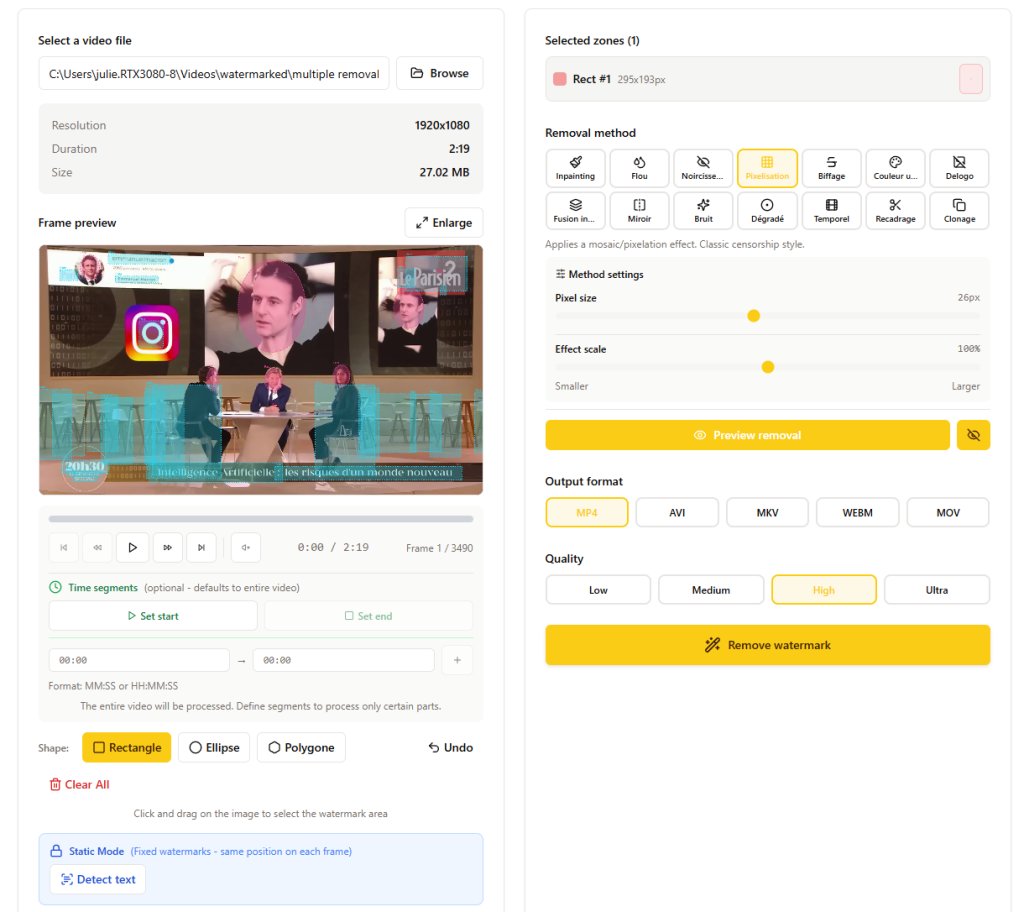
Not all watermarks are necessarily simple rectangles, so we give you the possibility to draw several different types of zones:
- Rectangle – For standard rectangular logos and text
- Ellipse – Perfect for circular or oval logos
- Polygon – Draw custom shapes for irregular watermarks
This will give you flexibility and precision according to your exact removal needs, regardless of the watermark shape, whether it's irregular, oval, circular or rectangular.
Dynamic Detection with Artificial Intelligence (YOLO)
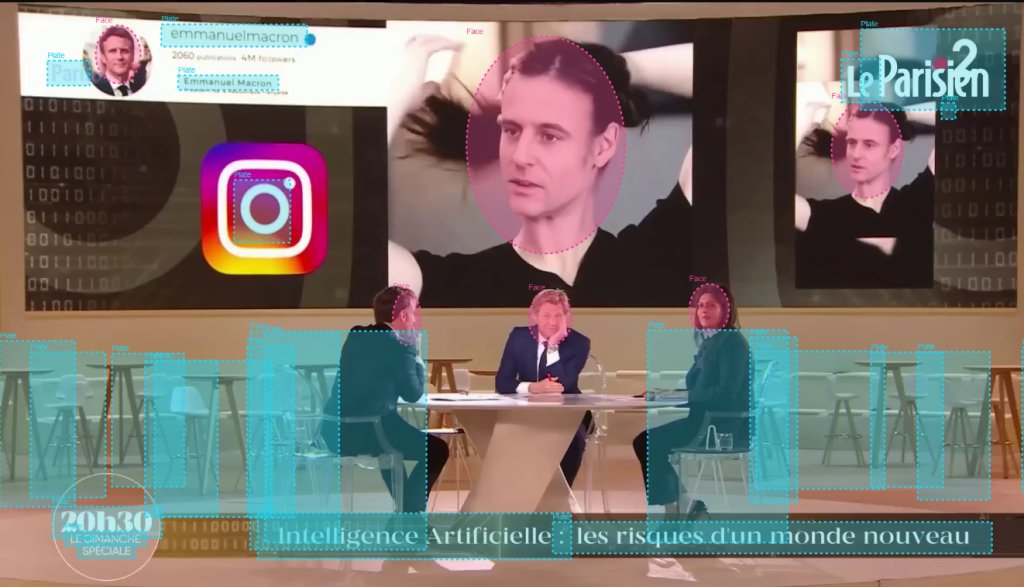
Our advanced tracking mode uses YOLO (You Only Look Once), artificial intelligence that automatically detects and tracks:
- Faces – Automatic detection and tracking of human faces
- License plates – Vehicle privacy protection
- Text – Detection by optical character recognition (OCR)
- More than 80 different objects – People, cars, animals and dozens of other objects supported by YOLO
This feature is perfect for privacy protection and being compliant with different broadcasting platform regulations. It's also perfect for automating the detection of certain recurring elements where artificial intelligence will analyze the video frame by frame and you won't have to manually adjust the zones when objects are moving.
Temporal Segment Selection
You don't necessarily need to analyze or process the entire video. Our temporal segment selector lets you define which part of your video you want to apply a specific effect to. This allows you to save computation time and give you precise control when editing your videos.
How to Remove Watermarks in 3 Simple Steps?
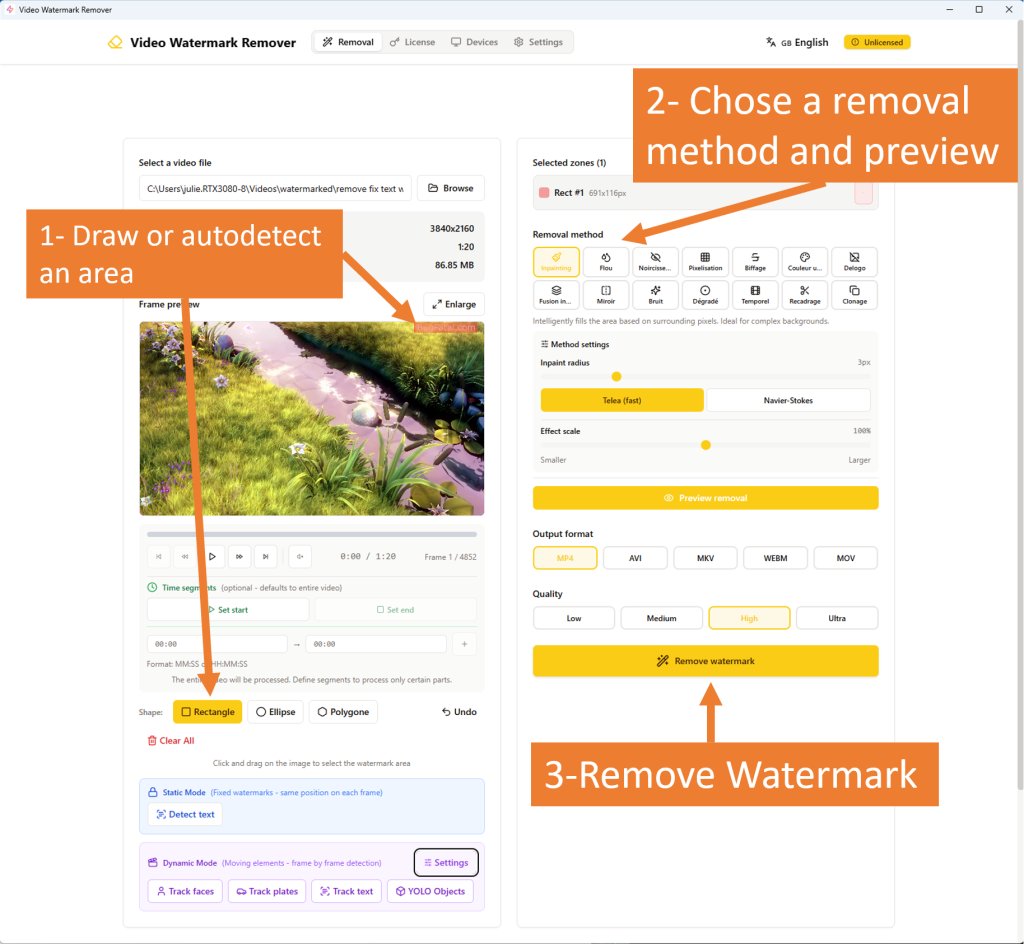
Removing watermarks from your videos has never been so simple. Our interface is intuitive, but nevertheless, let me guide you through the process.
Step 1: Load Your Video File
You click on the Browse button. You drag and drop your video file directly into the application. We support most standard video formats:
- MP4 – The classic for maximum compatibility
- AVI – More classic format
- MKV – Popular container for high quality videos
- WebM – Videos optimized for browser streaming
- MOV – Apple QuickTime format
Our software instantly starts analyzing your video. It provides classic elements, like resolution, duration, size. And displays the preview of the first image of your video. And already, you're ready for zone selection.
Step 2: Select the Watermark Zone
You use your mouse to draw a selection directly on the preview of the zone you want to remove. You can therefore choose between three types of shapes:
- Rectangle – You click on the first point of your rectangle, you keep the click pressed and you release where you want to finish the selection
- Ellipse – Good for circular logos
- Polygon – You click on several points until the last point and close your shape, this is for shapes that would be a bit more complex
You can add multiple zones, so several zones. If there are several watermarks or if you want to potentially cut a logo that would be of different shapes, of a somewhat particular shape into several masks actually.
Each zone is displayed in the zones panel where you can delete your selections.
💡 Little tip: You can click on the Detect text button to automatically find text zones in the current frame, in the current image. To directly draw the selection zone. It's a technology that uses quite traditional character recognition.
Step 3: Choose the Removal Method
Which method to choose? By default, we always start with Inpainting which is the most versatile. Then depending on the results:
| Situation | Recommended method |
|---|---|
| Corner watermark | Try Crop if you can lose this part of the image |
| Simple solid background | Smart Blend or Color Fill |
| Gradient background (sky) | Gradient Fill |
| Logo with sharp edges | Delogo |
| Need to show it's censored | Blur or Pixelate |
| Similar clean zone elsewhere | Clone |
| Fixed watermark, moving background | Frame Interpolation |
You click on the Remove watermark button. And then it's off to encoding. A progress bar shows you exactly the process advancement with an estimated time for finalizing your file.
That's it! Just in three clicks, your video has been processed and is being saved in the location you chose. Once it's finished, it's ready to be used in your projects directly.
⏱️ Note: Don't be surprised if the processing can be a little long. The software needs to analyze each image of the video and apply the removal method you will have chosen.
Supported Video Formats and Quality Options
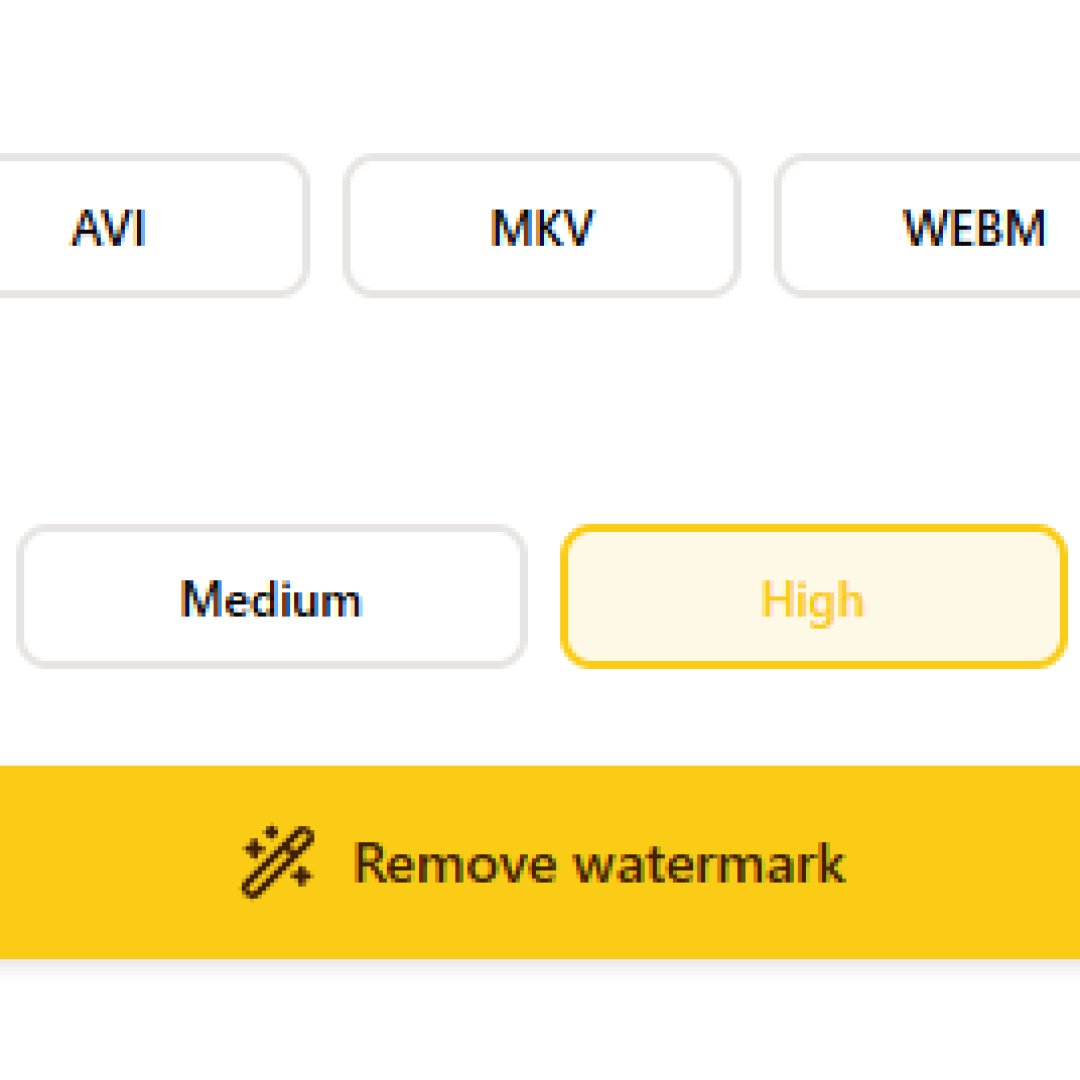
Input Formats
Our video converter reads almost all known and usual video formats. The encoder uses FFmpeg which allows supporting a whole bunch of formats.
No matter if your source is from a camera, a webcam, old camcorders or from a recording of your desktop or a video downloaded from the internet. You cover all your needs:
- MP4
- AVI
- MKV
- WebM
- MOV
- WMV
- FLV
- MPEG
Output Formats
You choose the output format that best corresponds to your needs:
| Format | Usage | Compatibility |
|---|---|---|
| MP4 | Default, universal | All devices |
| AVI | Windows editing | Windows Media Player, legacy software |
| MKV | High quality archive | VLC, advanced players |
| WebM | Web optimized | Browsers, online platforms |
| MOV | Apple ecosystem | Final Cut, iOS |
💡 Advice: In any case, if you have doubts, choose MP4 which is really universal, readable on all devices and won't cause you major problems in most cases.
Quality Presets
You can choose 4 quality levels to contrast between file size and visual quality:
- Low – Reduced file size, ideal for web streaming or previews
- Medium – Good balance for general usage
- High – What I recommend, excellent quality in most cases
- Ultra – Maximum quality with necessarily a larger final file, perfect for continuing to work on the video in a professional or editing context
All encodings use professional codecs with FFmpeg to ensure you maintain the full visual quality of your video after applying the chosen removal method.
Advanced Features for Professional Results
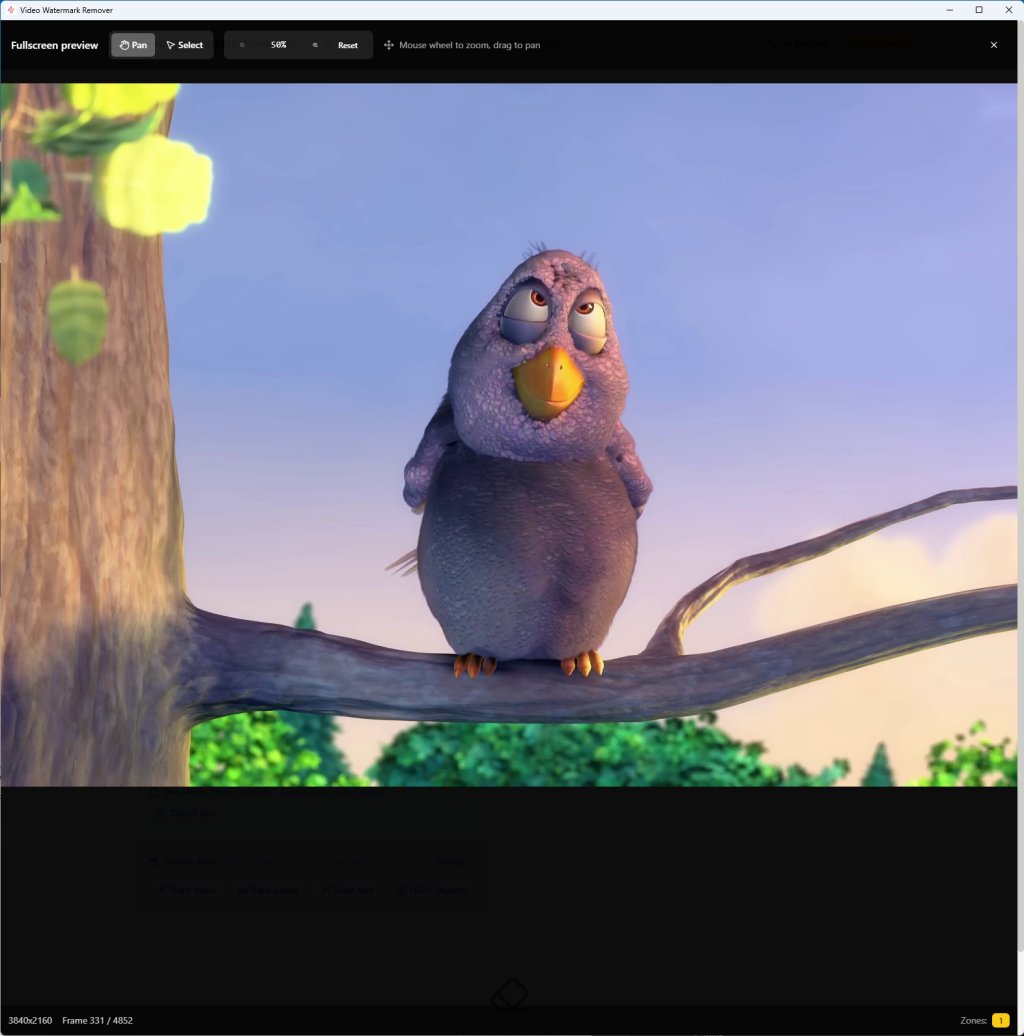
Real-Time Preview
Before proceeding to encode the entire video, you can use the preview buttons, whether it's the removal zone preview button or the removal method preview.
The software, as soon as you choose a new parameter, updates the preview and thus allows you:
- To adjust the removal method until you're satisfied with the final result
- To adjust as precisely as possible certain settings that condition the blur strength for example or pixel size
- To experiment with different approaches to preview the final result before removing the watermark and proceeding to complete encoding
Multiple Zone Processing
You can proceed to process several zones to remove at the same time. The software can process several zones simultaneously, which makes processing easier when you have many watermarks, logos, faces, several different things to remove in the same video.
Precise Temporal Segment
You can navigate through the video to select a very specific frame as being the beginning of the zone you want to process. You can go to a specific frame or define the timing of the beginning and end of processing and see the results it could have on different sections.
Privacy and Digital Security Protection
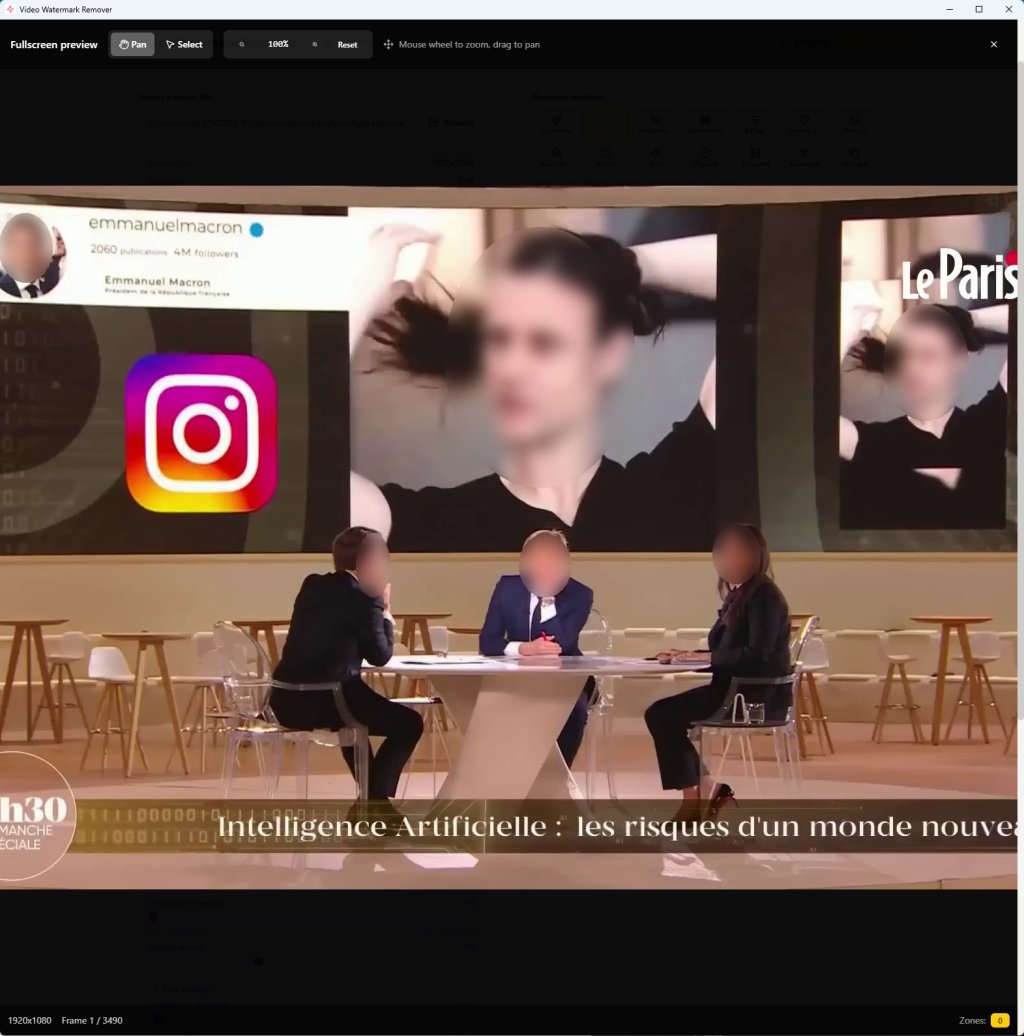
Automatic Face Blurring
Our AI detection allows you to identify human faces present in your video and apply the removal method you will have chosen. It's just absolutely perfect for:
- Videos you might have filmed on the street where local law requires for example strict application of privacy
- If you made a documentary for example without having consent from certain people present in your scenes
- Removing elements that would affect your personal security, because you can't broadcast certain information whether it's your login, your name, or information that would allow you to be hacked
- Certain parts of your social media content, etc. In short everything that remains private in your eyes and that you don't want the end user to be able to see
Pixelate License Plates
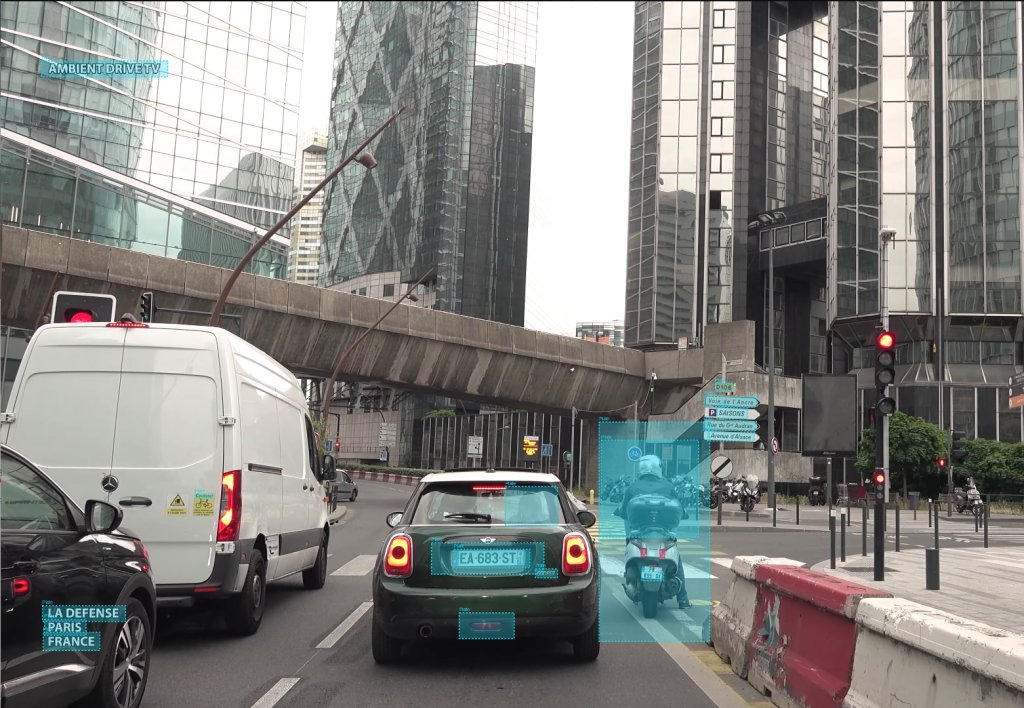
It's very similar to face detection. Our software can automatically detect and blur vehicle license plates in videos. It's essential when:
- You're filming outside, you're in a garage, on the street
- You want to share your dashcam content, for example if you had an accident, you filmed something
- It can also be good in the context of journalistic or news content
- Generally for any video that requires anonymization of vehicle plates
Text Detection (OCR)
It's embedded with a character recognition system and this system can detect text in your videos. It's practical for:
- Removing subtitles
- Eliminating timestamps in videos
- Removing promotional text
- Removing any textual element
💡 Take into account the fact that there are two ways to remove text:
- Text that would be fixed, for example a watermark with a website name
- Text that is dynamic, for example you have a name on a t-shirt, or text that would be displayed in the room you're filming in
All the small texts that are detected by AI can be processed.
Selection Modes: Static vs Dynamic
Static Mode (Fixed Positions)
Use Static Mode for fixed positions of watermarks, whether text or a logo. Draw your zone once, and the software applies removal to each image in this exact position.
Dynamic Mode (AI Tracking)
This is when elements in your video are moving. YOLO can trace them automatically and identify the objects you will have selected frame by frame to adjust the removal zone you want.
It's really perfect for:
- Faces that would move during an interview
- Vehicles that move during the scene you're filming on the street
- People who would move in the frame, in the field of your video
- Generally any element that moves, that you can detect and that requires removal
Device Compatibility and Playback
Watch and stream on any device. The videos you've processed are compatible with most modern device standards:
- Windows PC – Playback with Windows Media Player, VLC, or any multimedia player
- Mac – QuickTime and all Mac video applications
- Android – Native player, VLC, MX Player
- iOS – Native iPhone and iPad playback
- Smart TV – Direct USB playback or streaming
- Video game consoles – PlayStation, Xbox
You can stream them on Instagram, Facebook or YouTube or any social platform that interests you.
Free Trial and License
Test for Free – 5 Videos per Day
Our free trial gives you complete access to the software's capabilities with simply a limitation on the number of videos you can process per day:
✅ 5 videos to process per day
✅ All removal methods available
✅ All output qualities available
✅ No watermark on output files
✅ Every day the counters reset at midnight
This is not a limited demo. You can use the software in its entirety with all its capabilities. Test it as long as you need and if you have needs that exceed the trial capabilities, don't hesitate to buy a license if you like the software.
Lifetime License – Only €19
If you need to unlock unlimited video processing:
- One-time purchase – No need for subscription or any recurring fees
- Lifetime updates – All future versions are included
- Use on 3 computers – Home, work or laptop
- Priority support – Quick response to your questions
- Unlimited videos – Process as much as you need
It's better than most editing software. Here you buy once and use it forever.
Simple and Intuitive Interface
Designed for Everyone
Our interface has been designed to fulfill one objective: make video editing, particularly for removing watermarks, so that it's accessible to everyone. No matter if you're a complete beginner or a professional video editor. You'll feel comfortable immediately.
Main interface elements:
- Video preview – Large preview area with zone overlay
- Timeline – To navigate where you want in your video
- Zones panel – To select and manage zones you want to select to remove watermarks
- Methods panel – Quick access to our 14 removal tools
- Settings – The small parameters each time that are specific to these methods
- Progress – Real-time tracking during the process
No hidden menus or confusing options. Everything is clearly visible and accessible.
Multilingual Support
Our software is available in 15 languages including:
- English
- French
- Spanish
- German
- Italian
- Portuguese
- Chinese
- Japanese
- Arabic
- Russian
- And more...
The interface automatically adapts to your operating system language. But you can manually change your preferences from the menu dedicated to this usage.
Frequently Asked Questions
How do I remove a watermark from a video?
Removing a watermark is simple with our software:
- You just have to load the video – In one click, you select the video you want to process
- You select the zone of the watermark you want to remove – You let the software detect it automatically or you draw the zone
- You choose a method for removal
- You click on Remove watermark
The software will process your video and save the result. The entire process takes just a few minutes, depending necessarily on the size of your video and the power of your computer.
Which method should I use to remove the logo?
The best method always depends on the specific situation:
- Simple logos on uniform backgrounds → Inpaint or Color Fill
- Logos on complex moving backgrounds → Blur or Pixelate
- Overlay text → Inpaint or Smart Blend
- Watermark in corners → Possibly cropping if video quality allows
- Privacy (faces) → Blur with dynamic detection
Generally, you can start testing with Inpainting. For most situations, it produces a fairly natural result.
Can I remove watermarks from any video format?
Yes, our software supports most common video formats, including MP4 through AVI, FLV, MOV, WebM, MKV and many more. The video is processed in the format you choose, also exported in the format you desire.
Does Video Watermark Remover add its own watermarks?
No, that would be the height of irony! But as many free tools do, we don't. Unlike many free tools, our software does not add a new watermark. You can imagine, you want to remove them, we're not going to add more. The output is clean and professional, regardless of whether you use the software in free or licensed version.
How long does it take to process a video?
The process depends on quite a few points and factors:
- Your video length and resolution – The longer the length and the higher the resolution, the longer the processing time will be
- Your removal method – Some methods don't require much power, for example cropping will be done in a few seconds, while pixelization will take a bit more time
- Fixed zone vs AI detection – If the zone is fixed, the process is faster than if the software must automatically detect moving faces with artificial intelligence
- The number of zones you select
Typically, a traditional Full HD video with a single zone can take between 2 to 5 minutes to be processed depending on its duration.
Can I process multiple videos at once?
Currently, the software allows processing only one video at a time. However, you can add them to the processing list and actually they will be processed progressively as soon as the previous file has been processed.
We won't process several at once because already processing one video requires quite a lot of resources and your computer wouldn't support processing several at the same time.
Is my privacy protected?
Absolutely. Our software:
- Works 100% offline (exception made for license verification)
- Never uploads your videos to any server
- Does not track your activities
- To test the trial version, no need to register an account
Your videos stay on your computer. Period.
Does it work with 4K videos?
Of course! Our software supports 4K 2160p videos and even larger resolutions. Just take into consideration that the longer and higher resolution the video, the longer it will take to process but quality will be maintained.
GPU Acceleration
For better performance with AI analysis (faces, license plates, objects), it's often recommended to have an NVIDIA GPU for example with CUDA enabled and drivers installed.
For now, our software only uses your processor power and we're thinking about creating a version that allows users to use their graphics card processing.
System Requirements
Minimum Configuration
- Operating System: Windows 10 or Windows 11 (64-bit)
- Processor: Dual-core CPU @ 2.0 GHz
- RAM: 4 GB
- Storage: 500 MB for installation + space for your videos
- Internet: Required only for license activation
Recommended Configuration
- Operating System: Windows 11 (64-bit)
- Processor: Quad-core CPU @ 3.0 GHz or better
- RAM: 8 GB or more
- Storage: SSD with 10+ GB free space
- Internet: Broadband connection for updates
Download Now – Start Removing Watermarks Today
Don't let watermarks ruin your videos anymore and don't spend hours understanding complex editing software. Don't pay expensive subscriptions for features you rarely use.
Our Video Watermark Remover gives you professional results with minimal effort required. Just load, select, remove. It's simple.
What do you get by downloading for free?
✅ 14 removal methods – Inpaint, blur, pixelization and more
✅ Powerful artificial intelligence detection – Faces, plates and other objects automatically
✅ All traditional video formats – MP4, AVI, MKV, WebM, MOV
✅ All quality selections – From lowest to ultra
✅ All zone selection methods – Rectangle, ellipse, polygon
✅ Real-time preview – See the result before processing
✅ 5 videos to process per day – Fully functional, without watermark
✅ 196 languages – Interface in your native language
✅ 100% offline – No uploading of your videos
✅ No account required – Download, use immediately
Join satisfied users who have discovered the simplest way to remove watermarks from their videos. Download now and transform your videos in minutes!
Technical Specifications
Languages: French, English, Spanish, German + 192 others
License: Freemium (Free version + optional Premium upgrade)
Price: Free / €19 one time (Lifetime license)
Supported input formats:
- MP4 (H.264, H.265/HEVC)
- AVI (XVID, DIVX, and others)
- MKV (all codecs)
- WebM (VP8, VP9)
- MOV (QuickTime)
- WMV, FLV, MPEG, MPG, and more
Output formats:
- MP4, AVI, MKV, WebM, MOV
Removal methods:
- Inpainting (Telea, Navier-Stokes)
- Blur (Gaussian, Median, Bilateral)
- Pixelate
- Blackout
- Delogo
- Smart Blend
- Color Fill
- Gradient Fill
- Mirror
- Noise Fill
- Strikethrough
- Frame Interpolation
- Crop
- Clone
AI Detection (YOLO):
- Face detection and tracking
- License plate detection
- Text detection (OCR)
- 80+ COCO object classes